



Alexa has become an essential part of many UK households, helping people manage everyday tasks through simple voice commands. From playing music and controlling smart lighting to viewing live footage from connected security cameras, it provides convenient hands-free access to a growing range of smart home devices. When Alexa suddenly stops responding, however, even routine activities can become frustrating. Whether your Echo lights up without answering, refuses to control connected devices or appears completely offline, identifying the real cause is not always straightforward.
In most cases, the problem is not permanent. An unstable internet connection, temporary Amazon service interruption, outdated software, microphone settings or disconnected smart home integrations can all prevent Alexa from responding correctly. This guide explains why your Alexa is not working, what different LED light colours indicate, and the most effective ways to restore normal operation. If you also rely on Alexa to control smart security equipment such as indoor cameras, outdoor cameras or video doorbells, you'll also learn how to reconnect those devices and prevent similar issues in the future.
Key Takeaways
-
Alexa issues are often caused by network, software or account problems rather than hardware failure. Before considering a factory reset or replacement, check your Wi-Fi connection, Amazon service status and device settings.
-
Alexa's LED light colours provide valuable clues about the underlying issue. Understanding what blue, yellow, red, purple and orange lights mean can significantly reduce troubleshooting time and help you choose the correct solution.
-
A structured troubleshooting process is more effective than trying random fixes. Starting with power and internet checks before moving on to software updates, account settings and device resets helps avoid unnecessary disruption.
-
Smart home devices may stop responding even when Alexa appears to work normally. Re-linking Alexa Skills, rediscovering devices and ensuring cameras remain online can restore voice control without replacing your equipment.
-
Preventive maintenance keeps Alexa and connected security devices working reliably. Regular firmware updates, stable Wi-Fi coverage and routine checks of connected devices reduce the likelihood of future interruptions.

Why Is My Alexa Not Working?
Alexa may stop working for several different reasons, and the symptoms often provide useful clues about where the problem originates. Before restarting your Echo or resetting the device, it's worth taking a few minutes to identify whether the issue is related to power, your home network, Amazon's cloud services or a connected smart home device.
The table below highlights some of the most common symptoms, their likely causes and the first checks you should perform before moving on to more advanced solutions.
| What You Notice | Most Likely Cause | What to Check First |
| No lights or sound | Power supply issue | Power adapter, socket and cable |
| Blue light spins continuously | Wi-Fi or internet connection problem | Router status and broadband connection |
| Orange light stays on | Alexa is trying to connect to Wi-Fi | Wireless network settings |
| Red light remains on | Microphone muted | Microphone button on Echo |
| Alexa not responding but lighting up | Internet issue, software error or microphone problem | Wi-Fi, Alexa app and microphone settings |
| Smart devices won't respond | Lost Alexa Skill connection or offline device | Alexa Skills, linked accounts and device status |
Although these symptoms may appear similar, the underlying causes can be very different. For example, an Echo that lights up but says nothing is usually still receiving power, suggesting that the issue lies with voice recognition, network connectivity or cloud communication rather than the hardware itself.
Wireless connectivity remains one of the most common causes of Alexa issues. Many homes now rely on dozens of connected devices sharing the same Wi-Fi network, including smart TVs, phones, laptops, security cameras and gaming consoles. According to Ofcom's Connected Nations reports, reliable home connectivity has become increasingly important as UK households continue to adopt more internet-connected devices, making network stability a key factor in smart home performance.
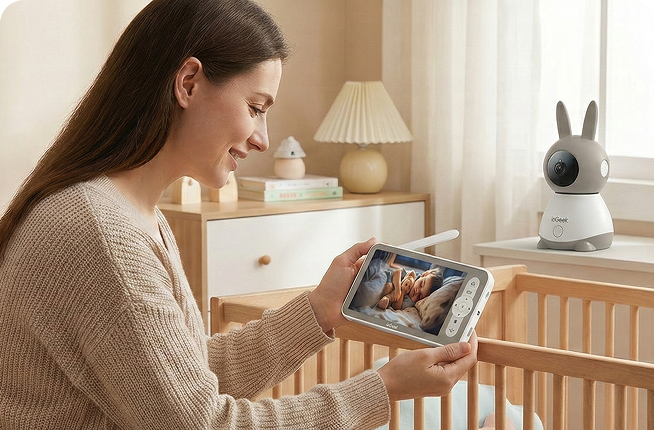
For households using Alexa as part of a wider security system, connectivity becomes even more important. Voice commands such as displaying a live camera feed, answering a video doorbell or checking an indoor CCTV camera all depend on stable communication between Alexa, the cloud platform and the connected device.
Alexa Not Responding but Lighting Up: What It Usually Means?
When Alexa is not responding but lighting up, the Echo device is usually receiving power and detecting your wake word. In other words, the hardware is often functioning correctly, but something is preventing Alexa from completing the request. The cause may be a temporary internet interruption, a muted microphone, an issue with Amazon's cloud services or a software problem affecting voice processing.
Fortunately, the colour and behaviour of the LED light ring provide useful diagnostic information. Rather than treating every lighting pattern as the same fault, understanding what each colour represents allows you to narrow down the cause and apply the most appropriate fix.
| LED Light | Meaning | What You Should Do |
| Blue spinning | Alexa is processing a request or starting up | Wait a few seconds, then check your Wi-Fi if it continues spinning |
| Blue flashes briefly then stops | Wake word detected but request failed | Check internet connection and Amazon service status |
| Yellow flashing | Notifications or messages available | Ask, "Alexa, what are my notifications?" |
| Red solid | Microphone has been muted | Press the microphone button to re-enable voice input |
| Orange spinning | Device is trying to connect to Wi-Fi | Check router, broadband and saved wireless network |
| Purple flash | Do Not Disturb enabled or Wi-Fi setup issue | Disable Do Not Disturb or complete Wi-Fi setup |
Understanding these indicators helps avoid unnecessary troubleshooting. For example, a flashing yellow light does not indicate a fault at all, while a continuously spinning orange light almost always points to a network connection problem rather than a defective Echo device.
Blue Light but No Response
A blue light is the most common indicator users see when asking, "Why is my Alexa not working?" Normally, the blue ring appears briefly after Alexa hears the wake word before responding to your request. This situation is often linked to an unstable internet connection, temporary communication issues with Amazon's cloud services or delayed software processing. Start by checking whether other devices in your home can access the internet. If Alexa still remains silent, the problem may be linked to an account or cloud service issue rather than the device itself.
Yellow Light Keeps Flashing
A flashing yellow light is one of the easiest LED patterns to misinterpret because it usually does not indicate a fault. Instead, Alexa is notifying you that there is a pending notification, reminder, delivery update or message waiting on your Amazon account. Simply say, "Alexa, what are my notifications?" or "Alexa, read my messages." Once the notifications have been played, the yellow light normally disappears automatically. If the flashing continues after clearing notifications, check the Alexa app to confirm that no reminders or announcements remain active.
Red Light Stays On
A solid red light almost always means the Echo's microphone has been switched off. This is a privacy feature built into every Echo device, allowing users to disable voice listening whenever required. To restore normal operation, press the microphone button on top of the Echo once. The red light should disappear immediately, allowing Alexa to respond to voice commands again. If the red light remains on after pressing the button, unplug the device for around 30 seconds before reconnecting it.
Purple or Orange Light
Purple and orange lights usually relate to settings rather than hardware faults, although they often confuse first-time Echo owners. A brief purple flash typically indicates that Do Not Disturb mode has been enabled, meaning Alexa will continue responding to voice commands but may suppress notifications, announcements or incoming calls.
For households using Alexa alongside connected smart home devices—such as doorbell cameras—a prolonged orange light can also interrupt voice-controlled routines until the network connection has been fully restored. Ensuring both Alexa and your smart security devices reconnect to the same stable Wi-Fi network helps maintain reliable voice control and automation across your home.

How to Check Whether the Problem Is Alexa or Your Internet?
One of the biggest challenges when Alexa is not working is determining whether the fault lies with the Echo itself or your home internet connection. A practical approach is to compare how other connected devices are performing. If your phone, laptop or smart TV also struggles to access the internet, the issue is likely related to your broadband rather than Alexa. Conversely, if every other device is online while Alexa remains unresponsive, attention should shift towards the Echo, your Amazon account or connected Alexa services.
| Quick Check | Likely Alexa Issue | Likely Internet Issue |
| Other devices browse the internet normally | ✔ | ✖ |
| Alexa lights up but gives no spoken response | ✔ | Possible |
| Smart speakers across the home stop responding simultaneously | Possible | ✔ |
| Streaming services buffer on multiple devices | ✖ | ✔ |
| Alexa app cannot communicate with Echo | ✔ | Possible |
| Security cameras and other smart devices also disconnect | Possible | ✔ |
Another useful test is to ask Alexa to perform a command that doesn't require controlling another smart device, such as telling you the current time. If even simple requests fail while your internet connection appears stable, checking Amazon's service status or reviewing your Alexa account settings is the next logical step.
For households with connected security systems, network reliability becomes even more important. Voice commands for PTZ camera controls, live video streaming or smart automation depend on both Alexa and the connected devices maintaining uninterrupted communication. If cameras frequently disconnect during periods of weak Wi-Fi, upgrading network coverage or choosing devices designed for stable wireless performance can improve the overall smart home experience.
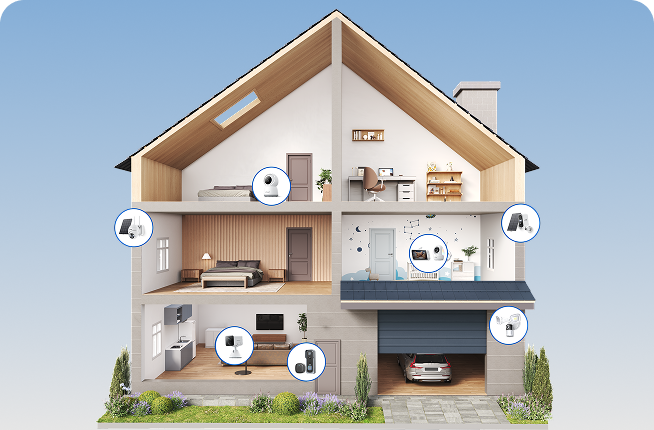
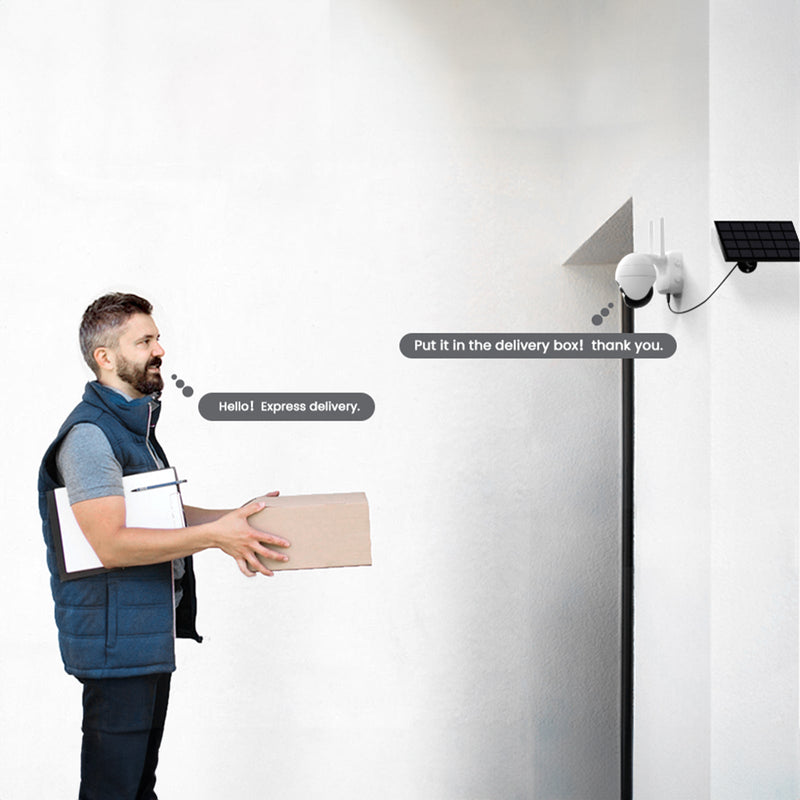
For example, homeowners relying on exterior surveillance may benefit from purpose-built outdoor monitoring cameras such as the ieGeek ZS-GX4S 5MP Solar Outdoor Security Camera, which combines battery operation with solar charging to reduce maintenance while remaining compatible with Alexa-enabled smart home routines. Similarly, indoor monitoring can be simplified with the ieGeek SC1 Pro Indoor Security Camera, allowing users to view live footage through compatible Alexa devices once the appropriate Skill has been linked. Rather than replacing Alexa when problems occur, ensuring both the network and connected security devices are configured correctly is often the more effective long-term solution.

Why Alexa Stops Controlling Smart Security Cameras
How to Reconnect a Security Camera to Alexa?
When a camera becomes unavailable in Alexa, many users immediately remove the device and start the setup process from scratch. While this can work, it is rarely the fastest solution. A more systematic approach usually restores communication without affecting existing automations or routines.
Start by confirming that the camera is online within its own mobile app. If the live view cannot be opened there, Alexa will also be unable to access the device. Once the camera is working normally, follow these steps:
- Open the Alexa app and navigate to Devices.
- Check whether the camera is listed as Offline or Unresponsive.
- Open Skills & Games and locate the camera manufacturer's Alexa Skill.
- Disable the Skill, then enable it again and sign back into your camera account if prompted.
- Select Discover Devices so Alexa can search for newly available hardware.
- Test a simple voice command such as "Alexa, show the front garden camera" if you're using an Echo Show or another compatible display.
If the camera still fails to appear, review your home network. Another point that is frequently overlooked is firmware compatibility. Camera manufacturers regularly release updates that improve Alexa integration, enhance security and add support for new features. Checking for firmware updates in both the camera app and the Alexa app helps ensure both platforms are communicating using the latest software.
For properties without fixed broadband, maintaining a reliable camera connection can be more challenging. In these situations, a 4G-enabled solution such as the ieGeek ZY-G1 3 Megapixel 4G Wireless Camera can provide remote monitoring where traditional Wi-Fi coverage is unavailable, such as farms, construction sites, holiday cabins or temporary premises. Because connectivity is handled through a mobile network rather than home broadband, it offers an alternative for locations where Wi-Fi-based smart home devices may struggle.

Compatible Smart Security Devices That Work with Alexa
Not every security camera offers the same level of Alexa compatibility. While many devices support basic voice commands, more advanced features—such as displaying live video, creating automation routines or two-way communication—depend on both the hardware capabilities and the manufacturer's Alexa Skill.
When selecting equipment, it is equally important to consider long-term reliability rather than specifications alone. Features such as regular firmware updates, stable Alexa Skill support and secure cloud connectivity contribute significantly to day-to-day performance. For example, the ieGeek SC1 Pro Indoor Security Camera is well suited to indoor monitoring where Alexa voice control is used for quick access to live views, while the ieGeek J1 Wireless Doorbell Camera enables convenient visitor monitoring and can complement Alexa routines for front-door awareness. For outdoor installations with limited access to mains power, the ieGeek ZS-GX4S 5MP Solar Security Camera combines solar charging with wireless operation, reducing maintenance while supporting reliable everyday monitoring.
Ultimately, the most dependable Alexa experience comes from viewing the smart home as an integrated ecosystem rather than a collection of individual devices. A stable Wi-Fi connection, updated firmware, properly linked Alexa Skills and compatible security cameras all work together to deliver responsive voice control and reliable home monitoring.
Prevent Alexa Problems from Happening Again
Most Alexa issues can be resolved quickly, but preventing them from happening in the first place is even more valuable. A well-maintained smart home ecosystem is generally more reliable, especially as the number of connected devices continues to grow. Regular maintenance not only improves Alexa's responsiveness but also helps ensure that connected security cameras, smart lighting and other automation routines continue working as expected.
-
Keep your Echo connected to a stable Wi-Fi network. If your router is several years old or your property has weak signal areas, consider upgrading to a dual-band or mesh Wi-Fi system to improve coverage throughout the home.
-
Allow automatic firmware updates. Both Echo devices and smart security cameras regularly receive software updates that improve security, compatibility and performance. Avoid disconnecting devices from power for extended periods, as updates are often installed automatically when devices are idle.
-
Review connected Alexa Skills periodically. If you no longer use a particular smart device or service, remove unnecessary Skills to reduce potential conflicts. For devices you use regularly, check that account permissions remain active after password or security changes.
-
Position devices carefully. Echo speakers perform best when placed away from televisions, large speakers and appliances that generate background noise or wireless interference. Similarly, positioning smart cameras within reliable Wi-Fi coverage helps maintain consistent communication with Alexa.
-
Restart your home network occasionally. While modern routers are designed for continuous operation, restarting them every few months can help refresh connections, particularly in homes with dozens of connected devices.
-
Check battery-powered security devices regularly. Cameras and video doorbells with low battery levels may remain visible in Alexa but become slower to respond. Solar-powered or wired solutions can reduce ongoing maintenance for outdoor installations.
FAQs
Why is my Alexa not working after a power cut?
Can Alexa work without Wi-Fi?
Why does Alexa light up but say nothing?
What does the orange light on Alexa mean?
Where can I check the Alexa outage map?
How can I tell if there is an Alexa outage in the UK?
Should I reset Alexa if it stops working?
Conclusion
Author Intro
 |
Developed by the ieGeek content team, combining hands-on experience with smart devices and insights into real user needs. ieGeek is widely known for smart security, our solutions are also designed for a variety of real-life scenarios, including travel, outdoor monitoring, pet care, and family safety. We focus on delivering simple, dependable solutions that fit seamlessly into daily life. |