



When you open Wi-Fi settings on a mobile phone or laptop, the list of available network names you see is made up of SSIDs. Each one helps your device identify a wireless network it can connect to.
You’ll usually need to know yours when connecting a new device or sorting out a Wi-Fi problem at home.

Key Takeaways
- SSID stands for Service Set Identifier and is the name used to identify a Wi-Fi network.
- Different SSIDs can help label home, guest and smart device networks or distinguish 2.4 GHz and 5 GHz connections.
- Devices need to connect to an SSID that matches their Wi-Fi requirements, such as 2.4 GHz-only smart home products or security cameras.
- Changing an SSID may require previously connected devices to be set up again with the new network name and existing password, unless you change that too.
- A clear SSID, strong Wi-Fi password and WPA2 or WPA3 protection can make a home network easier to manage and more secure.
What Is SSID?
SSID stands for Service Set Identifier. A simple definition of SSID is the name used to identify a Wi-Fi network.
A phone searching for nearby Wi-Fi might display names such as Home_WiFi, Guest_Network or Home_2.4GHz. Each of these can be an SSID created by a router or wireless access point.
You can select the correct SSID from the Wi-Fi list. from the Wi-Fi list. Once you’ve selected the right one, you may need to enter a password to connect.
Benefits of Using an SSID
Using clear SSID names can make a home Wi-Fi network easier to identify and manage. Common benefits include:
- Easier network identification: An SSID helps users recognise their own Wi-Fi network when several nearby networks appear on the same device.
- Better network organisation: Different SSIDs make it easier to keep separate network groups clearly labelled.
- Clearer band selection: Separate names for 2.4 GHz and 5 GHz networks make it easier to connect devices to a compatible Wi-Fi band.
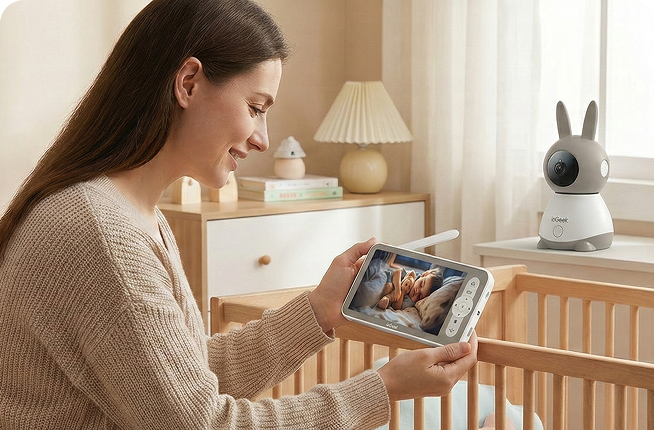
- Simpler device setup: A clearly named network reduces confusion when adding smart home devices, WiFi security cameras or other connected equipment.
The aim is simple: everyone at home should be able to find the right network without having to guess.
Limitations and Common SSID Issues
For WiFi on Camera, the SSID identifies the network, but does not determine Wi-Fi speed, signal strength or security on its own.
Confusingly similar names can also cause problems. A household might see HomeWiFi, HomeWiFi_5G and HomeWiFi_EXT in the same list without immediately knowing which belongs to the main router, another band or a Wi-Fi extender.
Hidden SSIDs can also make device setup less straightforward because the network does not normally appear in the available Wi-Fi list.
Common SSID Use Cases at Home
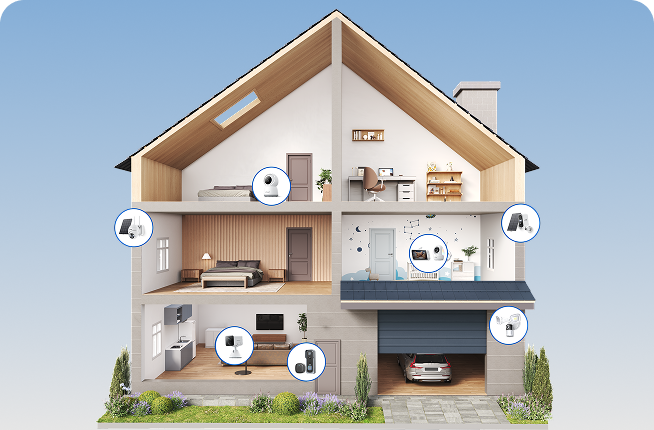
Different SSIDs can be useful when a home needs more than one clearly labelled network, whether for visitors, connected devices or different Wi-Fi bands.
SSID selection becomes more important when a device has specific Wi-Fi requirements. The ieGeek S7 wireless 24/7 recording camera uses 2.4 GHz Wi-Fi to connect to your home broadband router. If the home router gives 2.4 GHz and 5 GHz different SSIDs, the S7 should be connected to the 2.4 GHz network during setup.

How Does an SSID Work on a Home Network?
A router or wireless access point normally broadcasts its SSID so nearby phones, computers, security cameras and other Wi-Fi devices can discover the network.
When you select that SSID, the device attempts to join the network. On a password-protected home network, it then uses the Wi-Fi password and the router's security method, such as WPA2 or WPA3, to authenticate the connection.
Once connected, the device can communicate through the home network and, where permitted, access the internet.
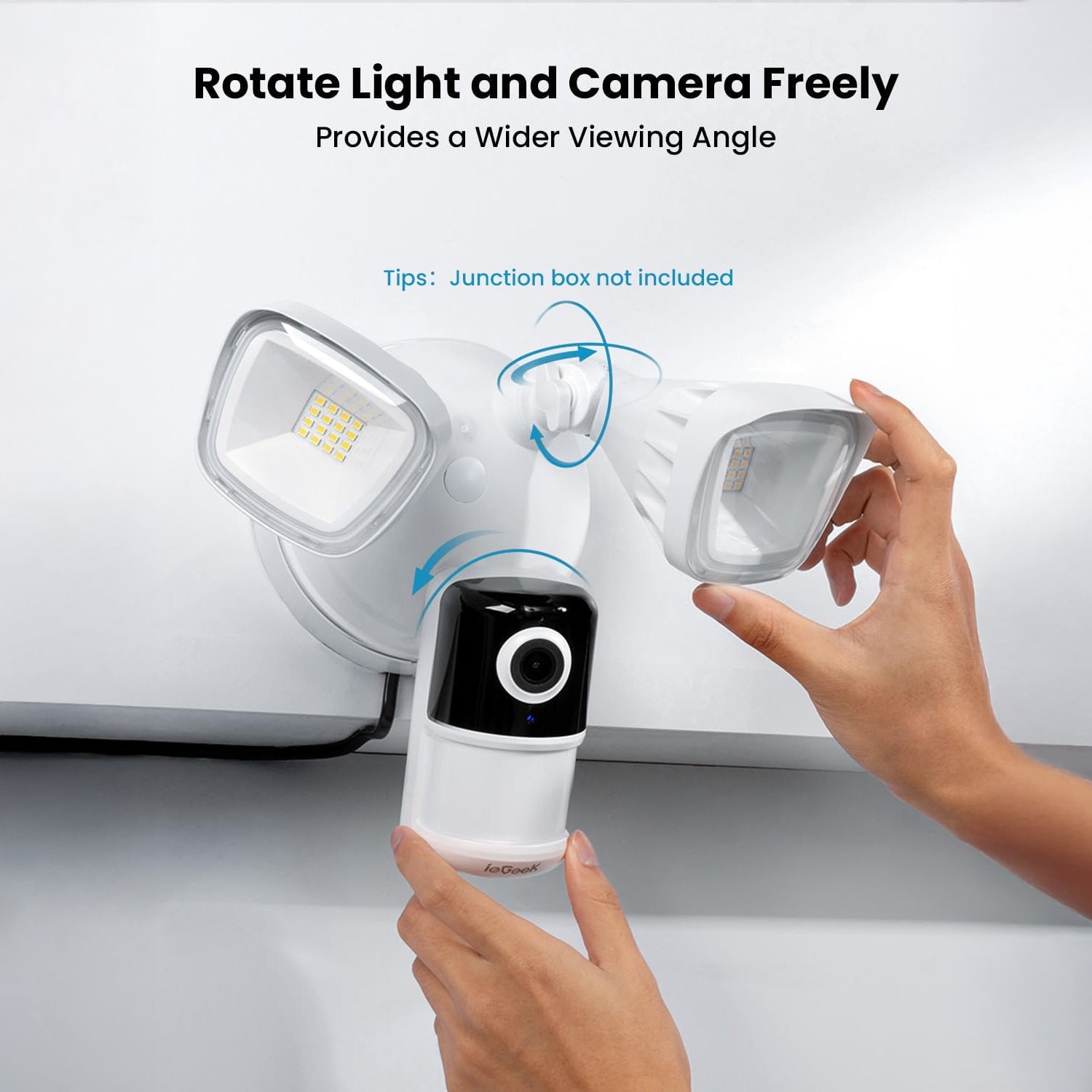
This process is easy to see when setting up a connected security camera. The ieGeek ZY-E2 floodlight camera supports dual-band Wi-Fi. During setup, you select your home SSID and enter the Wi-Fi password. After the camera joins the network, you can check your driveway or garden through the app while you’re out, provided the camera has internet access.
Some routers give 2.4 GHz and 5 GHz separate SSIDs. Others use the same network name for both bands and let compatible devices connect to either band. Both arrangements are common in home networks.
How to Find and Change Your SSID
Your current SSID can usually be found in the Wi-Fi settings of a connected phone or computer. To change the name, you’ll need to open your router’s settings.
Find Your Current SSID
The connected network is usually marked clearly in your device settings.
| Device | Where to Check | What You Will See |
|---|---|---|
| Windows PC | Settings > Network & Internet > Wi-Fi | Connected Wi-Fi name |
| iPhone or iPad | Settings > Wi-Fi | Tick beside current SSID |
| Android phone | Settings > Wi-Fi or Network & Internet | Connected network |
| Router | Router app or admin page | Configured network name |
If several familiar names appear, check which one is shown as connected rather than assuming the first network is the correct one.
Find the Default SSID
New routers usually come with a default SSID. It may be printed on a label underneath or behind the router, listed on a setup card, or shown in the broadband provider's app.
The default name often contains the router manufacturer, broadband provider or a short combination of letters and numbers.
If somebody has already renamed the Wi-Fi network, the printed default SSID will no longer match the current one.
Change Your SSID
SSID settings are normally available through the router's app or administration page.
Look for a section labelled Wi-Fi, Wireless, Network Name or something similar. Replace the existing name with your chosen SSID, then save the change.
Reconnect Devices After an SSID Change
Changing the SSID means previously connected devices may no longer recognise the network they saved.
Phones and laptops are usually quick to reconnect, but smart home devices can be easier to forget. Cameras, smart plugs, speakers and other equipment may need their Wi-Fi settings updated individually.
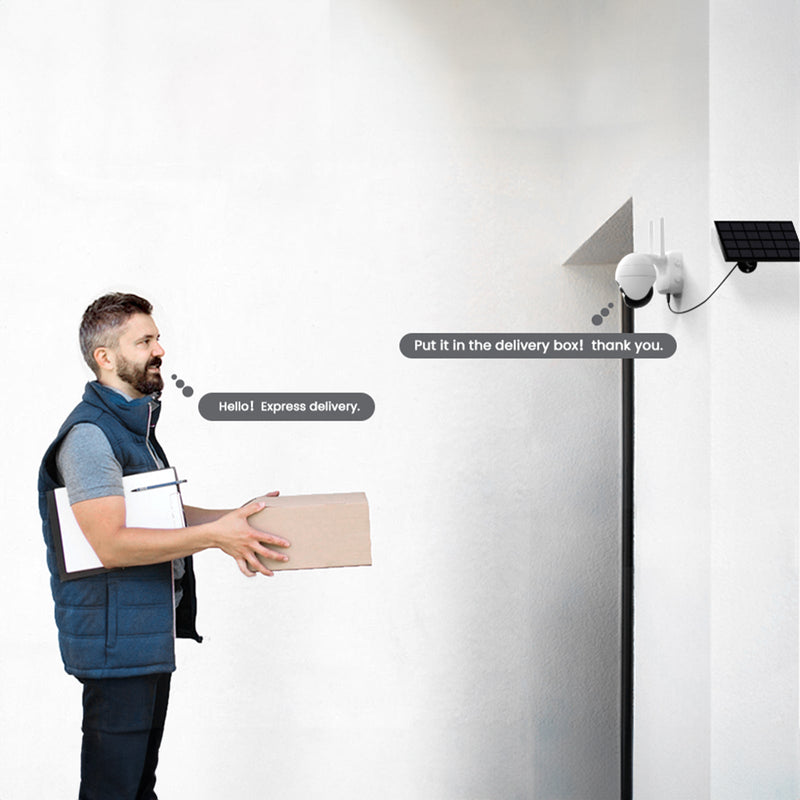
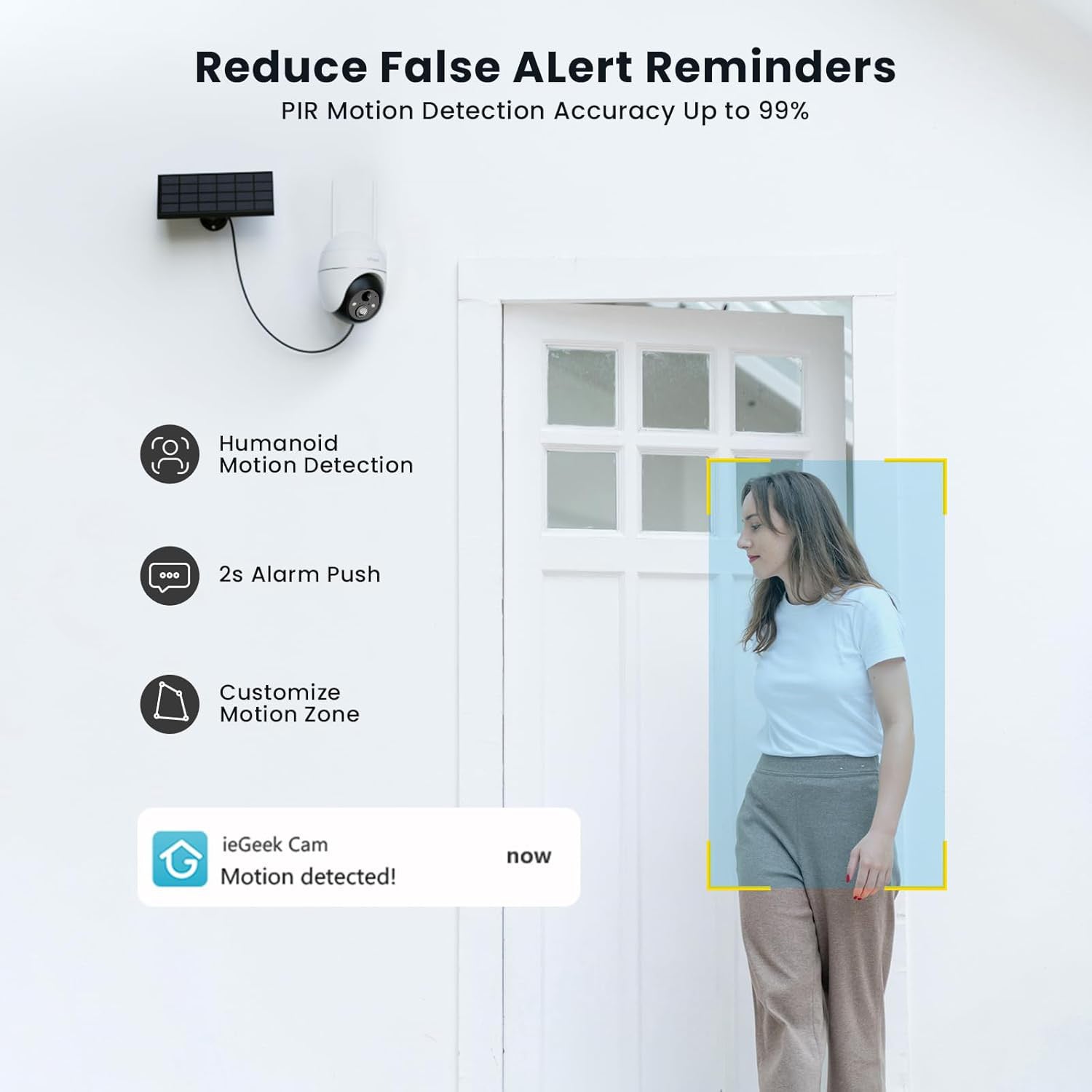
The ieGeek ZS-GX4S PTZ outdoor camera connects through 2.4 GHz Wi-Fi. If the SSID for that network changes, the camera may need to be connected again using the new network name and the correct Wi-Fi password.
Before renaming the network, make a quick list of connected devices so you can check each one afterwards.
How to Use SSIDs More Securely at Home
SSID settings are only one part of home network security. Password strength, encryption and the way devices are separated matter more than the network name itself.
Avoid Personal Information in Your SSID
Your Wi-Fi name may be visible to neighbours and people nearby, so it does not need to reveal who lives in the property.
A neutral name such as OakHome is usually more suitable than one containing a full surname or house number and postcode. It remains easy for household members to recognise without sharing unnecessary personal details.
Use a Strong Wi-Fi Password
Use a unique password that is difficult to guess and enable a suitable modern security option supported by your router and devices.
Renaming a network or hiding its SSID cannot replace strong authentication.
Separate Guest and Smart Devices
A guest SSID can give visitors internet access without requiring them to use the same Wi-Fi credentials as household devices.
Some routers also support a separate network for smart home products. This can make home security cameras, plugs, lights and similar equipment easier to organise away from personal computers and phones.
Network separation depends on the router configuration, however. Simply giving two networks different SSID names does not automatically guarantee that devices are completely isolated from one another.
Do Not Rely on a Hidden SSID
Turning off SSID broadcasting removes the network from normal Wi-Fi lists on many devices, but it does not prevent the network from being detected or protect it from threats such as WiFi jamming.
Devices still need to know the network name to connect. A hidden SSID may also make setup less convenient because the name sometimes has to be entered manually.
Strong passwords and appropriate Wi-Fi encryption provide more meaningful protection.
FAQ
Is the SSID just the Wi-Fi name?
Yes. For most home users, the SSID meaning is straightforward: it is the name used to distinguish one Wi-Fi network from another. It is different from the password, which controls whether a device is allowed to connect.
What is an example of SSID?
HomeWiFi, Guest_WiFi and Home_2.4GHz are all possible SSID names. The name can usually be customised through the router settings.
My router's SSID isn't showing up. What can I do?
Check that Wi-Fi is enabled on the router and move closer to it first.
If the network appears on other devices but not yours, the device may not support the Wi-Fi band being used. The router may also have SSID broadcasting disabled, in which case the network might need to be entered manually.
What happens if two Wi-Fi networks have the same SSID?
Two access points can deliberately share one SSID when they are part of the same home or mesh network.
If unrelated networks use the same name, however, a device may try to connect to the wrong one or use saved credentials that do not match.
Which SSID type is best?
There is no single best SSID because an SSID is mainly a network name.
One SSID may be enough for a simple home network. Guest access can be useful for visitors, while separate 2.4 GHz and 5 GHz names can help with some device setups where the manufacturer recommends them.
Conclusion
An SSID is simply the name used to identify a Wi-Fi network. At home, different SSIDs may be used for the main network, guests, separate Wi-Fi bands or smart devices.
Knowing which SSID a device requires is especially useful when setting up products with specific Wi-Fi compatibility. Clear network names, strong passwords and sensible network separation can make a home Wi-Fi setup easier to manage and more secure.
About the Author
 |
Written by the ieGeek team, a brand dedicated to making smart security simple and accessible for everyone. With experience in designing easy-to-install security cameras, we aim to provide practical advice based on real user scenarios. Our goal is to provide reliable, easy-to-use technology that helps users stay connected and protected in different environments. |